This guide is written for enterprise AV integrators, conference room equipment distributors, and corporate IT procurement teams evaluating display solutions for boardrooms, meeting rooms, and hybrid collaboration spaces. It covers display type comparison, configuration by room type, system integration requirements, factory verification, and B2B supply models. The focus is not on product features alone, but on how to build a deliverable, repeatable conference room display package that integrates with existing infrastructure and meets acceptance criteria.
75"Mainstream conference room size
4KUHD resolution baseline
≥20-pointMulti-touch for interactive
50+Export markets served
Conference room display solutions for B2B integrators and enterprise procurement teams.
📋1. Define Your Conference Room Requirements Before Choosing a Display
Display selection should follow a structured requirements assessment, not a product-first decision. Enterprise procurement teams should document meeting workflows, room conditions, and IT policies before evaluating any display.
1.1 Meeting Workflows
Map each room to its primary meeting type:
Content presentation: Slides, reports, video playback, customer demonstrations. Requires high brightness and reliable input switching, not necessarily touch.
Hybrid meetings: On-site and remote participants collaborating. Requires camera field-of-view, microphone pickup range, and platform integration.
Training and review: Extended viewing sessions, multi-person discussion, detail examination. May require dual-screen or large-format configuration.
Each workflow maps to a procurement question: Does the room need touch? Does it need remote whiteboard sharing? What platform must the display natively support?
1.2 Room Layout and Existing Infrastructure
Collect the following before evaluating displays:
Room dimensions, seating layout, and furthest viewing position
Ambient light conditions and screen mounting position
Existing PCs, AV equipment, network infrastructure, and conferencing platforms
Wall-mount, mobile stand, or fixed large-format installation requirements
1.3 User and IT Requirements
How employees and visitors connect devices (HDMI, USB-C, wireless casting)
Whether account login or guest mode is required
Network access restrictions or security policies
Multi-room management requirements: remote monitoring, firmware updates, device status
⚖️2. Compare Conference Room Display Solutions
Not every meeting room requires an interactive display. The comparison below helps procurement teams match display type to actual usage patterns.
Tipo di display
Meglio per
Key Verification Items
Not Suitable When
Non-interactive commercial display
Presentation, viewing, video conferencing display
Input interface list, brightness, duty cycle, control method
On-screen writing and annotation required
Interactive flat panel
Writing, annotation, collaborative operation
Touch-back control, whiteboard software, save and share function
Large spaces, multi-person viewing, display area requirements
Pixel pitch, control system, maintenance access, budget
Small rooms, constrained budget
2.1 When Is an Interactive Display the Right Choice?
The team actually uses shared writing and live annotation
Meeting content requires on-screen markup and saving
Appropriate collaboration software and training support are available
The budget premium for touch and built-in computing is justified by usage frequency
2.2 When Is a Non-Interactive Display Sufficient?
Meetings are primarily content display and video image
Operation is handled by an external PC; the display functions as a terminal
Budget priority is allocated to audio and video quality rather than touch
No on-screen writing, annotation, or whiteboard function is required
📐3. Recommended Configurations by Meeting Room Type
Display size and configuration should be matched to room dimensions, seating capacity, and content type. The table below provides baseline recommendations.
Room Type
Typical Capacity
Recommended Size
Core Requirements
Verification Focus
Small huddle room
2–6 people
55–65 inches
Fast connection, short meetings
Connection convenience, close-range readability
Standard meeting room
6–12 people
75 inches
Presentation, discussion, hybrid meetings
Content readability, camera and microphone coverage
Boardroom / executive suite
8–16 people
75–86 inches
Document review, remote discussion
Document detail, participant view layout
Training / multi-purpose space
15–30 people
86–110 inches or mobile solution
Flexible layout, teaching and workshop
Mobile management, viewing distance, connection method
Large conference space
30+ people
Large-format or distributed display
Full-room visibility
Furthest position readability, system control
3.1 Technical Parameter Baseline by Room Type
Small huddle room (2–6 people):
Size: 55–65 inches
Resolution: 4K UHD (3840×2160)
Connectivity: HDMI + USB-C (video, data, and power delivery capabilities verified individually)
Touch: Optional, not required
Standard meeting room (6–12 people):
Size: ≥75 inches as mainstream threshold
Resolution: 4K UHD
Touch: ≥20-point simultaneous touch for interactive configurations
Connectivity: Wired + wireless casting
Audio: Built-in speaker ≥20W or external sound system
Audio: Professional audio system with external microphones and speakers
Large conference space (30+ people):
Size: 110 inches+ or Direct View LED
Configuration: Single-screen, dual-screen, or distributed display
Control: Centralized control system, signal distribution
🔗4. Build the Complete Conference Room Display System
A display alone does not constitute a conference room solution. The complete system includes computing, connectivity, audio-video peripherals, and software integration.
4.1 Display and Computing
What function the display serves: display-only, built-in Android system, or external PC
Whether to use an employee PC, OPS module, or dedicated room PC
How the system matches conferencing software requirements
How to switch between built-in system and external PC
4.2 Presentation and Touch Connectivity
HDMI video input: Version, resolution support, HDCP compatibility
USB touch-back: Touch signal return from display to PC compatibility
USB-C: Video output, data transfer, and power delivery must be verified individually. Do not equate "has USB-C port" with "supports all single-cable functions."
Workflow: Open material → annotate discussion → whiteboard organization → save or share → clean meeting content
Annotation and writing fluency in actual software
Local save vs cloud sharing vs third-party software function
Content cleanup process after meeting ends
5.3 Share Content with Remote Participants
Workflow: Join meeting → share material or whiteboard → remote discussion → end session
What remote participants actually see and hear
Shared content clarity and latency
Touch-back performance in remote collaboration
Confirm the remote participant experience, not only whether the display can show content locally.
🛡️6. Installation, IT Policies and Multi-Room Deployment
6.1 Installation and Site Readiness
Wall material and mounting structure confirmation (load-bearing capacity)
Power, network, and cable position planning
External device installation and maintenance access space
Inspection responsibility assignment after installation
6.2 Account, Network and Content Handling
Employee and visitor connection methods
Account login and logout process
Local file and meeting content cleanup
Application installation and update permission management
6.3 Standardize Multiple Meeting Rooms
Unified configuration and operation interface
Model, firmware, and accessory record keeping
Remote management availability and authorization method
Firmware update, spare parts, and support process
🔍7. Evaluating a Conference Room Display Manufacturer for B2B Projects
7.1 Factory vs Trading Company: Production Capability Verification
Business license scope: Manufacturers list production activities (生产/制造/加工). Trading companies list distribution activities (贸易/经销/进出口).
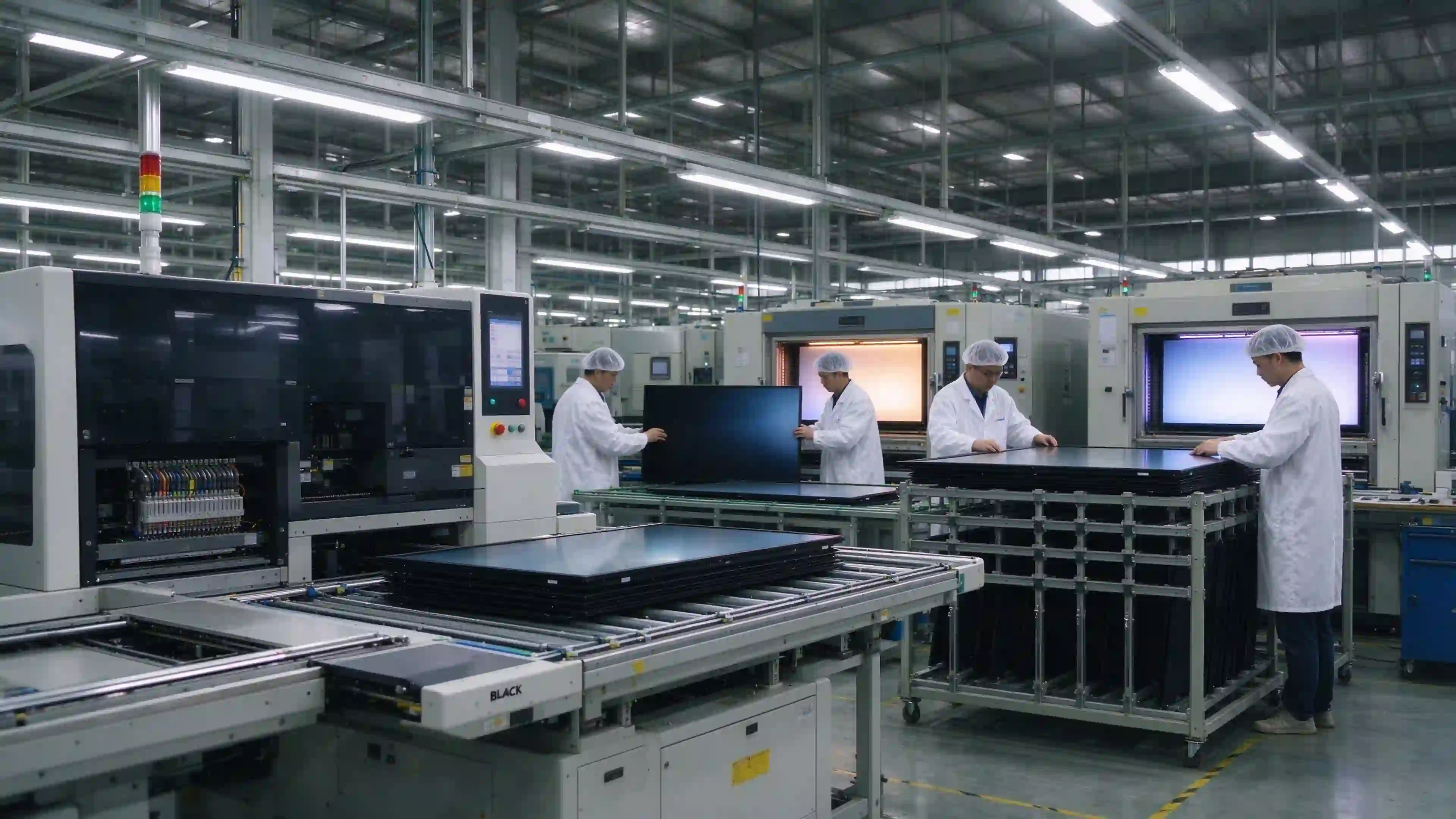
Live production floor video: Request real-time video of SMT lines, assembly lines, and aging test chambers. Qtenboard operates 12 automated SMT lines and 8 fully automated assembly lines.
Test reports in manufacturer's own name: Verify reports are issued directly to the manufacturer's legal entity, not forwarded from upstream suppliers.
In-house engineering execution: Custom engineering requests should be executed internally, not relayed to third parties.
7.2 Certifications and Compliance for Corporate AV Projects
ISO 9001:2015 — Quality management system
ISO 14001:2015 — Environmental management system
CE — EU safety, health, and environmental compliance
Commissione Federale delle Comunicazioni — North American electromagnetic interference standards
RoHS — Restriction of hazardous substances
PSE — Japanese electrical safety compliance; CB — IECEE CB Scheme
Regional adaptation requirements: Middle East high-temperature performance, Southeast Asia humidity resistance, Northern Europe low-temperature operation, North America anti-glare and brightness calibration.
7.3 Quality Control and Batch Consistency
IQC → IPQC → Aging Test → FQC → OQC complete process
Batch configuration records traceability
AQL standards and DPPM tracking data
Multi-room order configuration consistency guarantee
7.4 What Documentation Buyers Should Request Before Committing
Business license with production scope
Live production floor video (SMT, assembly, testing)
ISO/CE/FCC/RoHS certificates and test reports
Touch performance test data
Safety test reports (edge treatment, material compliance)
Sample unit for physical evaluation
🏭8. B2B Supply Packages and OEM/ODM Options
Qtenboard provides full OEM/ODM services for conference room display projects, with 20+ years of manufacturing experience and exports to 50+ countries. The supply model can be structured around three cooperation levels.
Supply Model
Supply Focus
Pre-Quotation Confirmation
Display-only supply
Screen, standard accessories, technical documentation
Model, quantity, interface, installation method
Project configuration supply
Display with validated computing, connectivity, or mounting accessories
Complete BOM, compatibility, service boundaries
Brand customization supply
Evaluated branding, packaging, system, or configuration customization
MOQ, development items, sample, lead time
8.1 Sample and Configuration Approval
Sample testing with customer's actual meeting software and peripherals
Software and peripheral compatibility verification
Final configuration confirmation and BOM approval
Sample-to-production change records
8.2 Bulk Production and Delivery
Configuration consistency and batch records
Inspection documentation and QC reports
Packaging, accessory checklist, and shipping documentation
Split delivery and lead time confirmation
8.3 Warranty and Local Service Responsibilities
Division of after-sales responsibility between factory and local partner
Remote diagnostics and spare parts process
Installation, training, and software issue ownership
Warranty scope and exclusions
OEM/ODM conference room display production for B2B distributors and integrators.
✅9. Pilot Testing and Project Acceptance Checklist
Test Item
Test Method
Result to Record
Content readability
Open actual report and PPT from furthest seat
Whether viewing requirements are met
Wired connection
Connect customer PC item by item
Video, audio, touch, and power results
Wireless connection
Employee and visitor test on site network
Connection conditions, operation issues
Interactive collaboration
Run planned software
Annotation, save, and share results
Hybrid meeting
Test with real remote devices
Image, audio, shared content
Post-meeting handling
Logout, clean files, restore interface
Whether customer process is met
Installation delivery
Check installation, accessories, documentation
Issue list and responsible person
Avoid replacing acceptance criteria with vague terms like "clear image" or "smooth operation."
💰10. Cost Planning and Supplier Evaluation
10.1 Compare Total Project Cost
Total cost of ownership (TCO) should cover the full deployment lifecycle:
Cost Item
Calculation Variables
Display equipment
Unit price × quantity
Computing and AV equipment
PC/OPS + camera + microphone + speakers
Mounting, cabling, control
Installation accessories + cables + control panel
Software licensing
Platform subscription × device count × years
Installation and commissioning
Labor × room count
Training
Sessions × participants
Maintenance and spares
Annual maintenance + spare parts inventory
Meeting time loss cost
Meetings × delay minutes × working days × staff hourly cost
10.2 Evaluate the Supplier Beyond Unit Price
Are model and configuration clearly defined (including options and customer-supplied items)?
Is the compatibility test scope documented (which software and versions were tested)?
Are verifiable project materials available (cases, test reports, certifications)?
Are lead time, warranty, and after-sales terms clear?
Is there a change confirmation mechanism for customization?
Do not assume interactive displays are always more expensive than alternative solutions. Comparison should be based on identical project scope.
📊11. Conference Room Project Example or Example Configuration
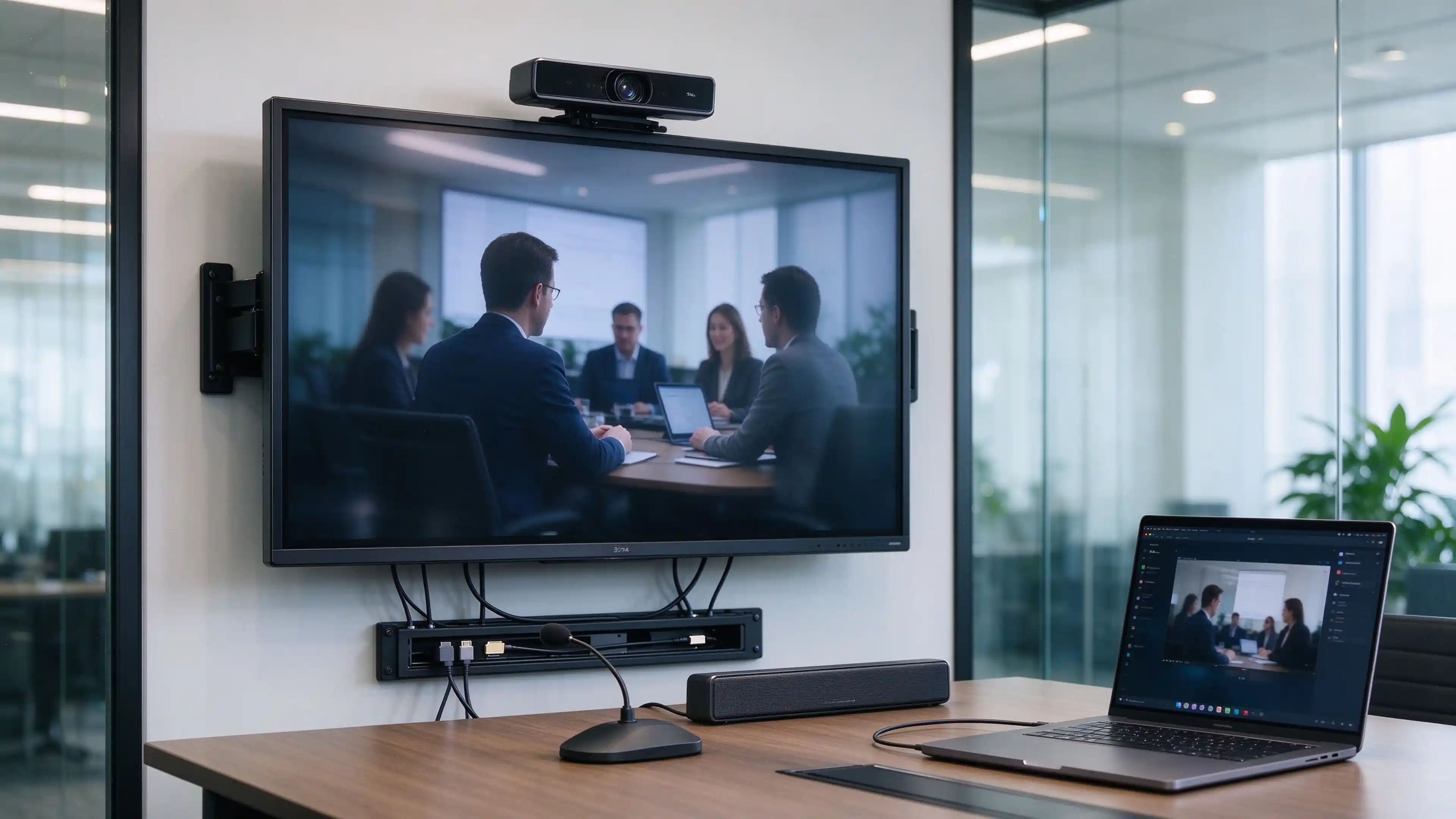
Example Configuration for a Standard Conference Room (6–12 people):
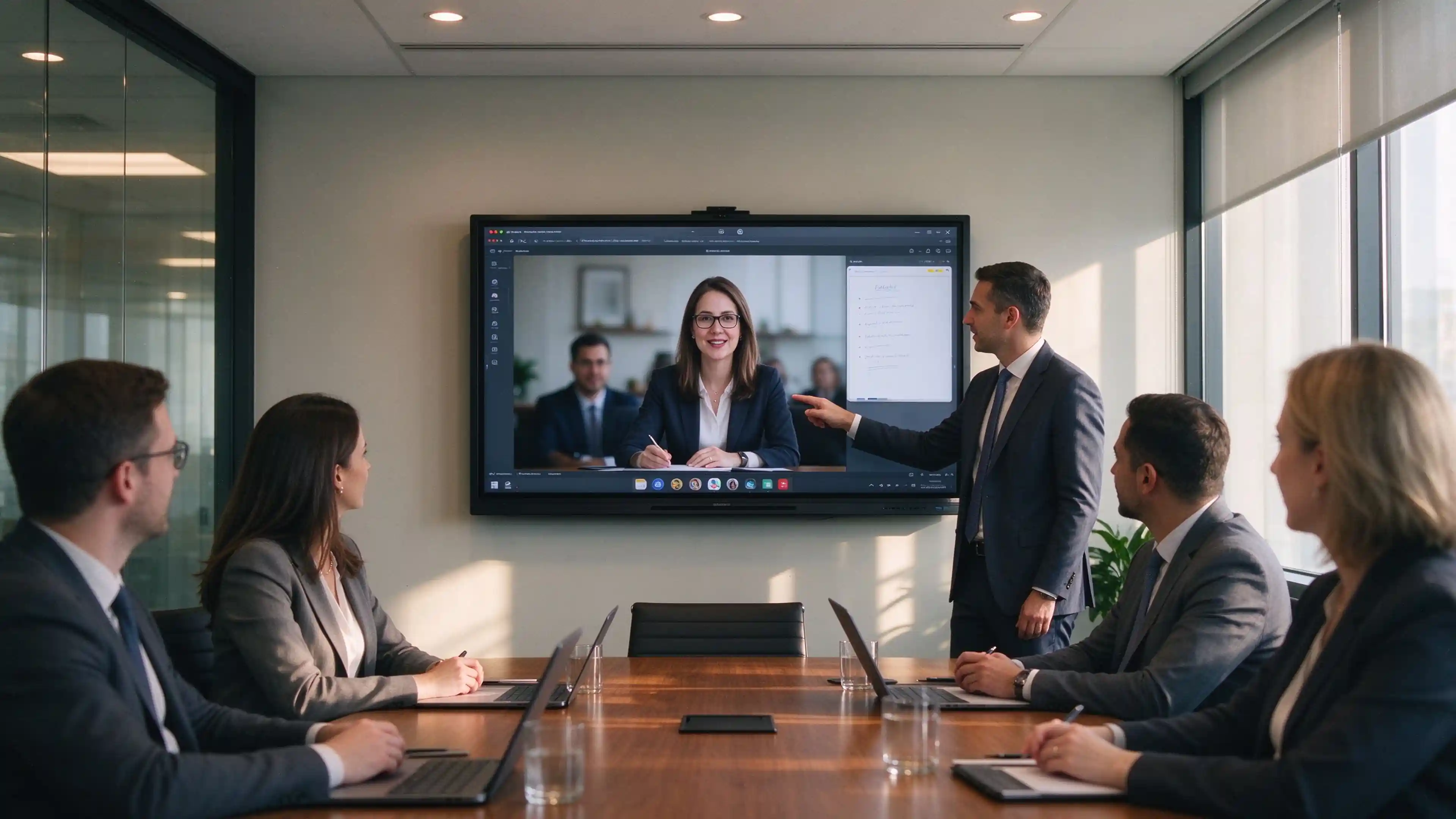
Display: 75-inch 4K UHD interactive flat panel with 20-point touch, Android 14 + optional Windows OPS
Camera: 4K USB camera with 120° field of view, auto-framing
Audio: Ceiling or table microphone with echo cancellation, external speakers
Mounting: Wall-mount bracket with cable management
Software: Built-in whiteboard, tested compatibility with major conferencing platforms
This is an example configuration for reference. Actual specifications should be confirmed based on project requirements and supply scope. No fictional company names, deployment quantities, or efficiency improvement data are used.
❓12. FAQs About Conference Room Display Solutions
Q1: What is included in a conference room display solution?
A complete solution includes the display, computing device (PC, OPS, or built-in Android), connectivity infrastructure (HDMI, USB-C, wireless casting), camera and audio equipment, mounting hardware, software licensing, installation, and after-sales support. The exact scope depends on room requirements and supply model.
Q2: Do we need an interactive or non-interactive display?
Choose interactive if the room regularly uses shared writing, annotation, or whiteboarding. Choose non-interactive if the room is primarily for content display, video conferencing, or external PC operation. The decision should be based on actual usage patterns, not specification preferences.
Q3: How should display size be selected?
Match size to room dimensions, seating capacity, and furthest viewing distance. 55–65 inches suits huddle rooms (2–6 people), 75 inches is mainstream for standard meeting rooms (6–12 people), and 86–110 inches serves boardrooms and training spaces. Larger screens require adequate viewing distance to avoid visual strain.
Q4: Can the display work with our existing conferencing system?
Compatibility depends on the platform and integration level. Verify whether the display is certified, tested compatible, or merely supports the platform. Request test reports for your specific software version before bulk orders. Qtenboard supports Android 14 and optional Windows OPS with one-click switching.
Q5: Do we need an OPS computer or a dedicated room PC?
An OPS module is recommended when the room requires native Windows application execution (full Teams, Zoom, Office). A dedicated room PC offers similar capability with external hardware. Built-in Android handles most whiteboarding and basic conferencing. Choose based on software requirements and IT management policy.
Q6: What should be tested before a bulk order?
Test the sample with the customer's actual meeting software, verify touch response and latency, confirm wired and wireless connectivity, check camera and microphone performance in the actual room, and verify batch configuration documentation. Record all results and final approved configuration.
Q7: Can you support OEM/ODM requirements?
Qtenboard provides full OEM/ODM/CKD/SKD services including logo printing, custom boot animation, UI theme, packaging design, hardware configuration, and production model selection. MOQ is flexible from 1 unit for sample evaluation to bulk orders for established distributors.
Q8: Who is responsible for installation and after-sales service?
Responsibility division should be documented before quotation. Typically, the factory provides hardware warranty and remote diagnostics, while the local distributor or integrator handles installation, on-site service, and spare parts management. Define the boundaries clearly in the supply agreement.
Request a Conference Room Display Configuration
To receive a project-specific configuration and quotation, provide the following information:
Project country or region
Room type, dimensions, and quantity
Primary meeting use case
Existing platform, PC, and AV equipment
Whether interactive, wireless, or brand customization is required
Estimated procurement volume and delivery timeline
Utilizziamo cookie e strumenti simili per fornire i nostri servizi. Se vuoi accettare tutti i cookie, fai clic su Personalizza i cookie.
Preferenze dei biscotti
Biscotti essenziali (richiesti)
Questi cookie sono strettamente necessari per consentire l'accesso e l'utilizzo della nostra Piattaforma. Forniscono le funzionalità necessarie per garantire le prestazioni, la sicurezza e la funzionalità adeguate della nostra piattaforma. Questi cookie non possono essere disabilitati.
Cookies analitici
Questi cookie ci aiutano a determinare e comprendere come gli utenti interagiscono e utilizzano la nostra Piattaforma.
Cookie di personalizzazione
Utilizziamo questi cookie per rendere i messaggi pubblicitari più pertinenti per te. Questi cookie svolgono anche funzioni come impedire che lo stesso annuncio riappaia continuamente, garantire che gli annunci siano visualizzati correttamente per gli inserzionisti e, in alcuni casi, selezionare annunci pubblicitari basati sui tuoi interessi.
Cookie di marketing
Questi cookie ci aiutano a fornirti un marketing più mirato e pertinente e a valutare l'efficacia delle nostre comunicazioni di marketing monitorando il tasso di apertura e le conversioni.
Cookie di social networking
Utilizziamo questi cookie per consentirti di condividere pagine e contenuti che trovi interessanti sulla nostra Piattaforma attraverso social network di terze parti e altri siti web.

 IT
IT
 EN
EN  AR
AR  DAN
DAN  ARM
ARM  FIN
FIN  SWE
SWE  NOR
NOR  MAY
MAY  NL
NL  TH
TH  KOR
KOR  PL
PL  RU
RU  PT
PT  SPA
SPA  FRA
FRA  DE
DE  CHT
CHT 